
Install Devopness MCP Server on Zed
Installing and Using the Devopness MCP Server in Zed
This guide explains how to configure and use the Devopness Model Context Protocol (MCP) server in the Zed editor.
By completing these steps, you allow Zed’s AI features to access real Devopness context and actions, such as projects, environments, and applications.
⚠️ Prerequisites
- Zed installed
- Node.js and
npxavailable- A Devopness Personal Access Token (PAT)
🧠 What is MCP in Zed
Zed uses the Model Context Protocol (MCP) to connect to external context servers.
An MCP server:
- Exposes structured data and tools
- Is invoked by a language model (LLM) configured in Zed
- Does not act autonomously
Devopness provides an MCP server that exposes your Devopness resources (projects, environments, applications, pipelines) as tools and context that a configured LLM can use inside Zed.
ℹ️ Important Devopness is not an agent in Zed. It is an MCP server whose tools are used by a language model configured in the editor.
⚙️ Prerequisites
Ensure the following are installed and available before continuing.
✔️ Zed editor
Install or update Zed from: https://zed.dev
✔️ Node.js and npx
Zed uses npx to run the remote MCP client.
Verify installation:
node --version
npx --version
If not installed, download from: https://nodejs.org
✔️ Devopness Personal Access Token
Generate a Personal Access Token (PAT) from your Devopness account. This token authenticates the MCP connection.
🛠️ Configuring the Devopness MCP Server
In Zed, configuration and activation are separate steps.
You must configure the MCP server first, then activate it.
Step 1 — Configure the MCP server
Choose one of the following methods.
Option A — Edit the Zed configuration file
-
Open Zed
-
Open Settings
- macOS:
Cmd + , - Linux / Windows:
Ctrl + ,
- macOS:
-
Navigate to AI → Context Servers
-
Click Edit in settings.json
-
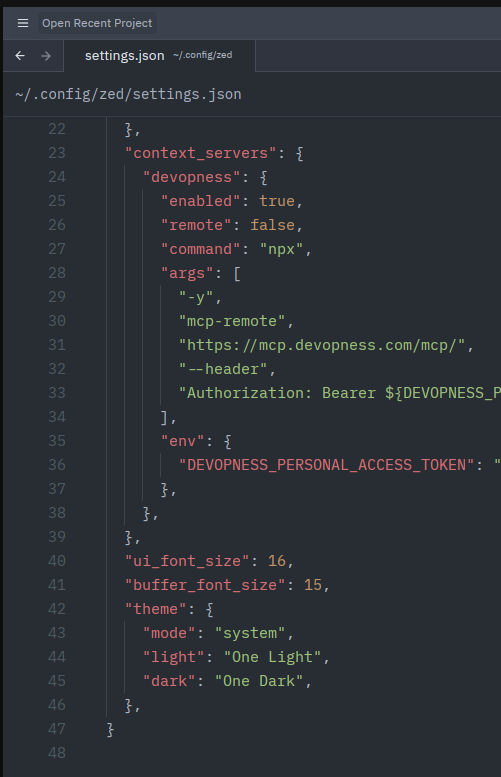
Add the following block:
{
  "context_servers": {
    "devopness": {
      "command": "npx",
      "args": [
        "-y",
        "mcp-remote",
        "https://mcp.devopness.com/mcp/",
        "--header",
        "Authorization: Bearer ${DEVOPNESS_PERSONAL_ACCESS_TOKEN}"
      ],
      "env": {
        "DEVOPNESS_PERSONAL_ACCESS_TOKEN": "dvpn_your_real_token_here"
      }
    }
  }
}
Option B — Use the Command Palette
- Press Ctrl + Shift + P
- Run
agent:add context server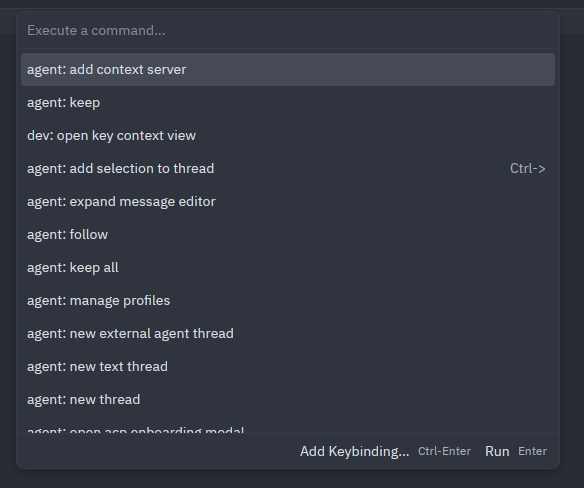
- Paste the same JSON configuration shown above
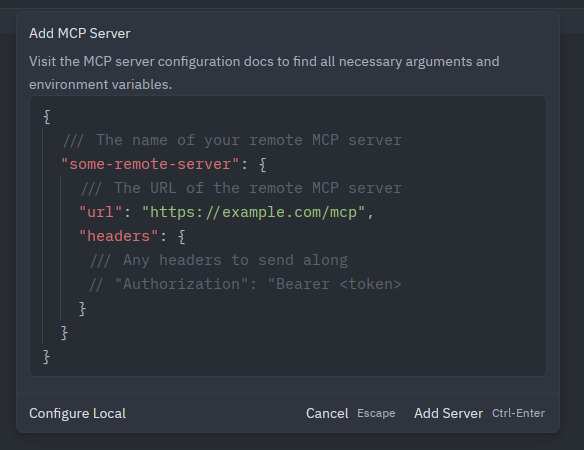
- Save
📌 Options A and B are alternatives. Use only one of them.
Step 2 — Activate the Devopness MCP server (required)
After configuration, the MCP server must be enabled.
- Open the Agent Panel
- Shortcut: Ctrl + Shift + ?
- Or menu: View → AI Settings
- Locate Model Context Protocol (MCP)
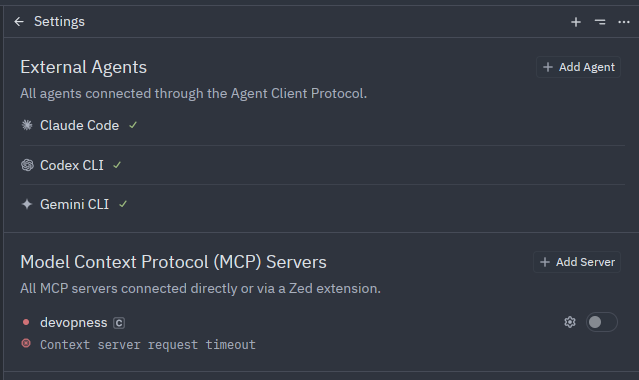
- Enable Devopness using the toggle
⚠️ Configuration alone is not enough. The MCP server must be explicitly activated.
✅ Verifying the MCP Connection
After configuration and activation:
- Open Ctrl + Shift + ? or View → AI Settings
- Under Model Context Protocol, you should see:
devopness- Status: active
- A list of available tools (for example: 55 tools)
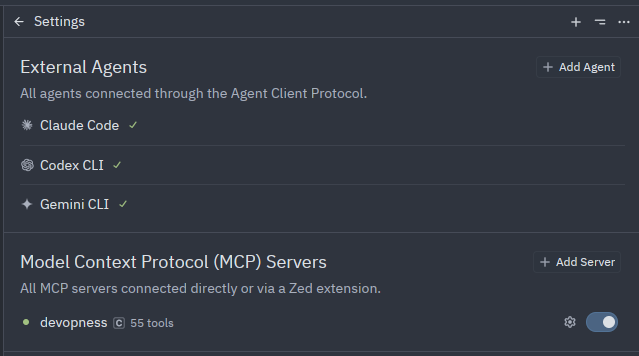
If the server appears but does not respond correctly, verify:
- Your Personal Access Token
- Node.js and
npxavailability - That a language model is configured in Zed
🤖 Using Devopness Context in Zed
Once active, the Devopness MCP server provides tools that a configured LLM can use.
Example prompts:
List my Devopness projectsShow my Devopness environmentsFetch my Devopness applications
ℹ️ If your Devopness account has no resources, empty results are expected.
⚠️ Common Issues
No language model configured
An MCP server requires an active LLM (OpenAI, Anthropic, Ollama, etc.). Configure a language model before testing prompts.
Generic or fictional responses
This usually means the LLM responded without invoking the MCP server. Ensure:
- Devopness is active under Model Context Protocol
- The token is valid
npx: command not found
Install Node.js and ensure npx is available in your system PATH.
Authentication errors
Double-check your Devopness Personal Access Token.
📌 Summary
- Devopness provides an MCP server, not an autonomous agent
- MCP servers must be configured and activated
- A language model is required to use MCP tools
- Once active, Devopness context becomes available to Zed’s AI features
This setup enables Zed to interact with real Devopness data, improving accuracy and usefulness when working with Devopness-related workflows.